A job is the repair record for one instrument or service request. It connects the customer, instrument, requested work, photos, work logs, parts, scheduling, and customer-facing documentation.
Start from Current Jobs
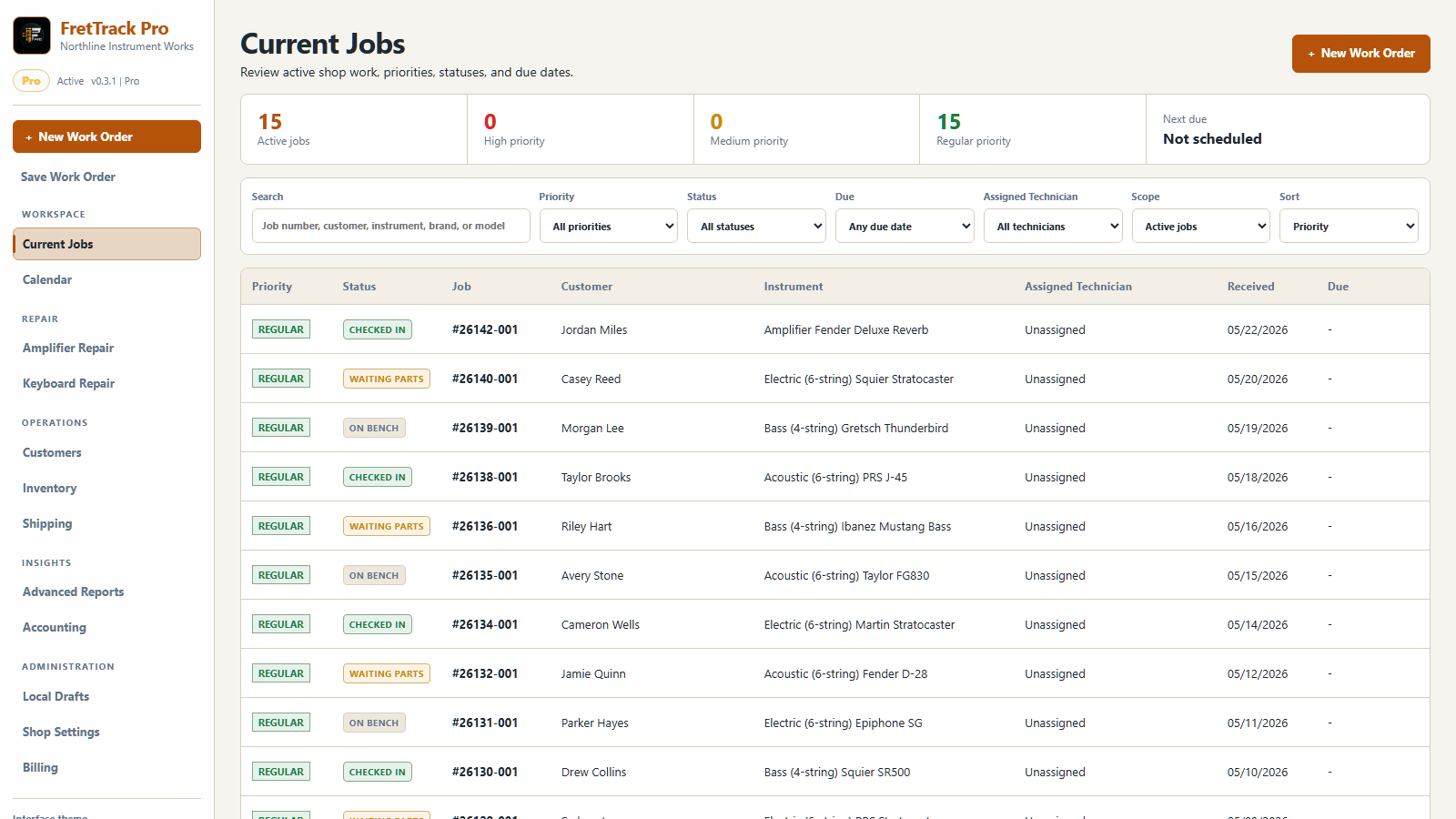
Use the queue summary and filters to find active work by priority, status, due date, assigned technician, or search text. Select a row to open the correct Guitar, Amplifier, or Keyboard work order.
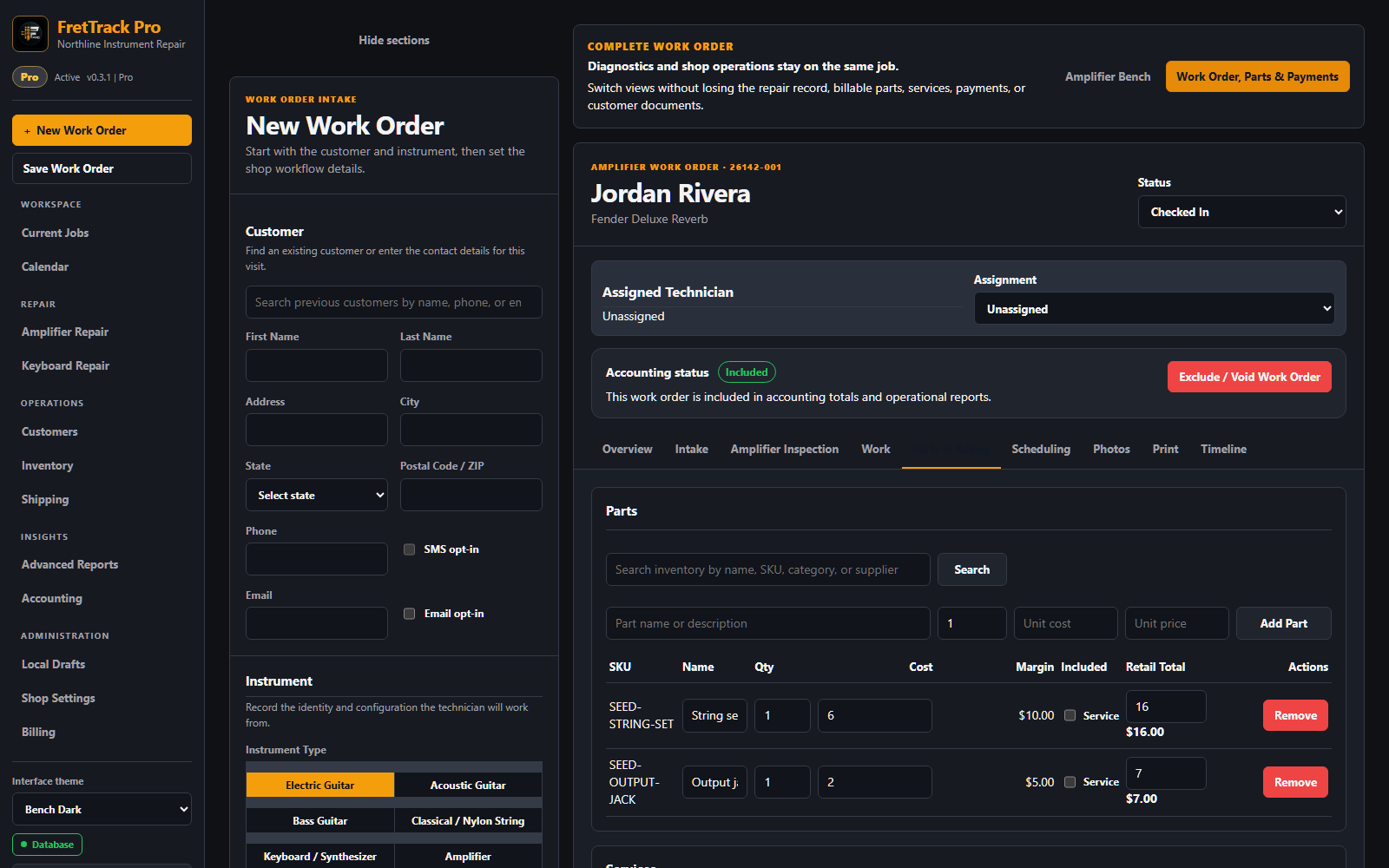
The same operational layout is available in light and dark themes.
Screenshot shows fictional shop and customer data.
Keep commerce on the work order
Open Work Order, Parts & Payments to manage parts, services, ordinary payments, authorized adjustments, tax settings, estimates, and invoice finalization through the existing role-aware controls.
For one verified payment covering several work orders, record the full amount once on one job. Open the customer's profile to apply only its excess credit to another directly linked job. An owner/admin can reverse the allocation or void a mistaken recorded payment there; corrections remain in the audit history. These actions never initiate an external refund or another payment.
Use the shared status flow to keep customers informed: Checked In, Awaiting Approval, In Queue, On Bench, Waiting Parts, OSS (Stretch & Settle), Quality Check, and Completed. OSS is the normal overnight settling period after guitar adjustments; Quality Check is the final play test before the instrument is marked ready.
If tax or VAT is off, use Open Tax / VAT Settings in Totals, enable and save the shop profile, then apply that shop rate to an older work order if prompted. To add a discount, choose Percentage (%) or Fixed amount before entering its amount.
Pro: Customer Work Order Portal. First set optional manual payment instructions, Venmo handle, or Zelle contact under Shop Settings → Customer Work Order Portal. Then, after saving the work order, an owner or admin can choose Create Customer Link here. Select Email Customer Link to open an editable, customer-ready email with a secure View your work order button, or copy the link yourself. It expires in 30 days; creating a replacement immediately revokes the old link.
The customer link shows only safe status, target date, balance, and the instructions you wrote. It does not take card payments, contact Venmo/Zelle, or automatically mark the work order paid. Verify and record off-platform payments through the normal payment controls.
Repair details and commercial history stay connected to one shop-scoped work order.
Screenshot shows fictional shop and customer data.
Create a new job
Open New Job.
Select or create the customer.
Enter instrument type, brand, model, serial number, color, finish, and orientation when known.
Add requested work, customer concerns, date received, promise date, priority, and job source.
Document condition with photos and damage-map notes.
Save the job before moving to other workflow areas.
Priority and promise date
Use HIGH for urgent work, Medium for scheduled deadlines, and Regular / Low for flexible work. Use Promise Date only when the shop expects or agrees to have the job ready by a specific date.
During repair
Add work logs for diagnosis, approval, progress, and completion notes.
Add inventory parts when stock should be adjusted.
Update status when the job moves to waiting, active work, ready for pickup, or complete.
Add schedule events for pickup, due dates, or follow-up reminders.
Before pickup
Review requested work and final notes.
Confirm parts and services are accurate.
Review photos and customer-facing report selections.
Confirm pickup, shipping, or delivery instructions.
Mark the job ready or complete when appropriate.
Amplifier and keyboard jobs
Pro specialist jobs have a focused Repair Bench and an instrument-specific Inspection tab. Amplifiers use safety, diagnosis, electrical, digital, and final-test fields. Keyboards use keybed, per-key fault, power, MIDI, guided-diagnostic, functional-test, and final-verification fields. Guitar neck, string, setup-measurement, and Damage Map controls do not appear on these specialist inspections.
Parts, purchasing, and payment
Switch the same specialist job to Work Order, Parts & Payments for ordinary parts, services, tax, discounts, payments, invoices, printing, photos, scheduling, messages, and history. If a part must be ordered, create a linked vendor order from the repair bench, receive it in Inventory, and then add the required job quantity to billing.
Common problems
If a job will not save, check required fields, network connection, active shop access, and your role. If inventory did not change, confirm the part was selected from inventory instead of entered as a manual part.